Limelight
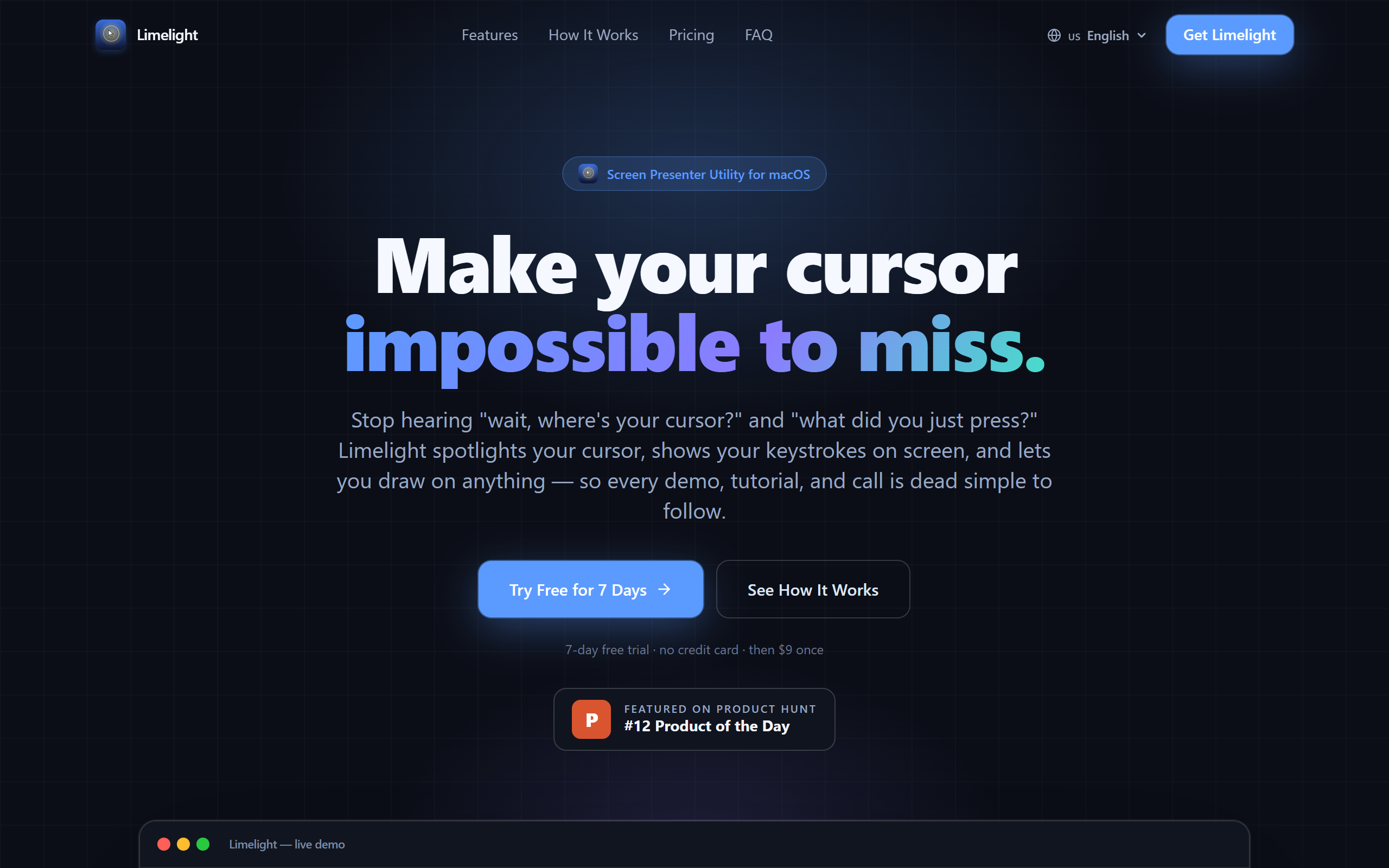
Native macOS menu bar app that spotlights your cursor, shows keystrokes, and lets you draw on screen during demos and recordings.
- Paid
- macOS
- Other
What is Limelight?
Key features
Cursor Spotlight
A glowing highlight follows the mouse pointer so audiences can track where you are pointing.
Keystroke Display
Shows the keyboard shortcuts and keys you press on screen in real time.
Draw on Screen
Freehand annotation layer to circle, underline, or highlight elements during a demo.
Global Hotkeys
Each tool is toggled instantly with a shortcut (such as Control-Option-1/2/3) without leaving the active app.
Menu Bar Native
Runs from the menu bar as a lightweight app with no dock clutter.
Fully Offline
No accounts, cloud services, or subscriptions, and it does not record or capture the screen.
Multi-Mac Licence
A single licence key activates on up to three Macs with lifetime updates included.
Pros & cons
Advantages
- A single one-time payment with lifetime updates avoids the recurring cost of subscription overlay tools.
- Works entirely offline with no account, which suits users who are cautious about cloud services or screen capture.
- Native build for both Apple Silicon and Intel keeps it light and responsive from the menu bar.
- The 7-day free trial with no credit card and a 7-day money-back guarantee lowers the risk of trying it.
- One licence covers up to three Macs, which is useful for people working across a laptop and desktop.
Limitations
- It is macOS only and requires macOS 14 (Sonoma) or later, so older Macs and Windows users are excluded.
- The feature set is deliberately narrow, covering cursor spotlight, keystrokes, and drawing rather than full recording or editing.
- There is no free permanent tier, so continued use requires a purchase after the trial ends.
Use cases
Software developers and engineers demonstrating workflows where keyboard shortcuts need to be visible to the audience.
Teachers and trainers running live lessons or webinars who want to direct attention to specific areas of the screen.
YouTubers and course creators recording tutorials that benefit from a cursor spotlight and on-screen annotation.
Sales and product teams giving live demos and wanting to highlight parts of the interface as they speak.
Anyone presenting over Zoom or similar calls who needs to draw on screen and emphasise their cursor.
Ready to try Limelight?
Pricing
Lifetime Licence
9 USD one-time (launch price, regularly 15 USD)
One-time purchase with lifetime updates, licence key by email, activation on up to 3 Macs, and a 7-day money-back guarantee.
Get started with Limelight
Click through to Limelight and start using it now.