
Screenshot Editor
Free, Easy, Quick & Online Screenshot editor.
- Always free
- No credit card
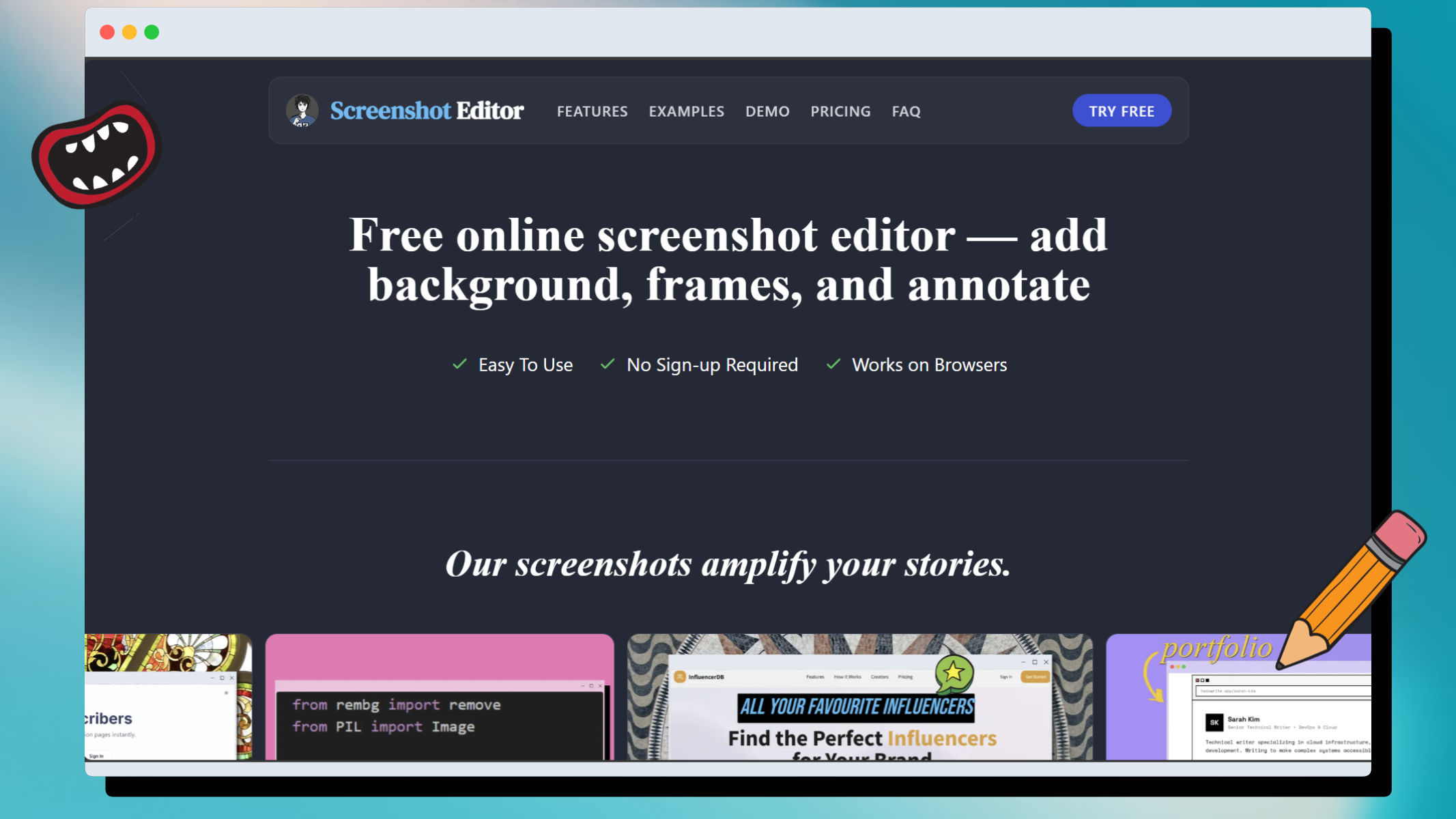
What is Screenshot Editor?
Key features
Text annotation
add and position text directly onto screenshots
Drawing tools
draw arrows, lines, rectangles, and circles for highlighting
Blur and pixelate
obscure sensitive information like passwords or personal data
Colour selection
choose colours for text, shapes, and brush strokes
Download and export
save edited screenshots in common image formats
No account required
edit and download without registration
Pros & cons
Advantages
- Completely free with no premium tier or watermarks
- No software installation needed; works in any modern web browser
- Fast workflow for quick annotations and immediate download
- Straightforward interface suitable for users of any technical level
Limitations
- Limited to basic annotation features; not suitable for complex image editing tasks
- Web-based only, so internet connection required to use the tool
- No file history or cloud storage; edited screenshots must be manually saved
Use cases
Creating annotated screenshots for software documentation or user guides
Highlighting errors in bug reports sent to development teams
Preparing tutorial images with callouts and labels for blog posts or help articles
Blurring personal or confidential information before sharing screenshots online
Adding arrows and text to social media screenshots for emphasis or commentary
Ready to try Screenshot Editor?
Pricing
Free
Free
Full access to all annotation tools, no limits on screenshots edited, no registration required
Get started with Screenshot Editor
Click through to Screenshot Editor and start using it now.
- Always free
- No credit card